How to access Restrictions on iPhone and iPad
In iOS 12, Restrictions have moved to the new Screen Time settings. For completeness’ sake, this tutorial provides instructions on accessing Restrictions on both iOS 12 and older versions.
How to access Restrictions/Parental Controls on iOS 12
Managing restrictions using parental controls has changed and is now an integral part of Apple’s new set of Screen Time features which are part of iOS 12’s digital well-being initiative.
All of the parental controls found on iOS 11 and earlier continue to be available to parents who wish to manage their family’s devices with Apple’s newest iOS 12 software.
1) Open the Settings app on your iPhone or iPad with iOS 12 or newer.
2) Tap Screen Time.
3) If you’ve previously enabled Screen Time, skip to step 4. Otherwise, tap Turn On Screen Time, hit Continue on the following screen and then tap This is My Child’s iPhone.
Follow the onscreen instructions to create your Restrictions passcode before you’re allowed to use the various parental controls that are at your disposal, like Downtime, App Limits, content and age restrictions and more, as shown on the screenshots below.
4) Tap Content & Privacy Restrictions.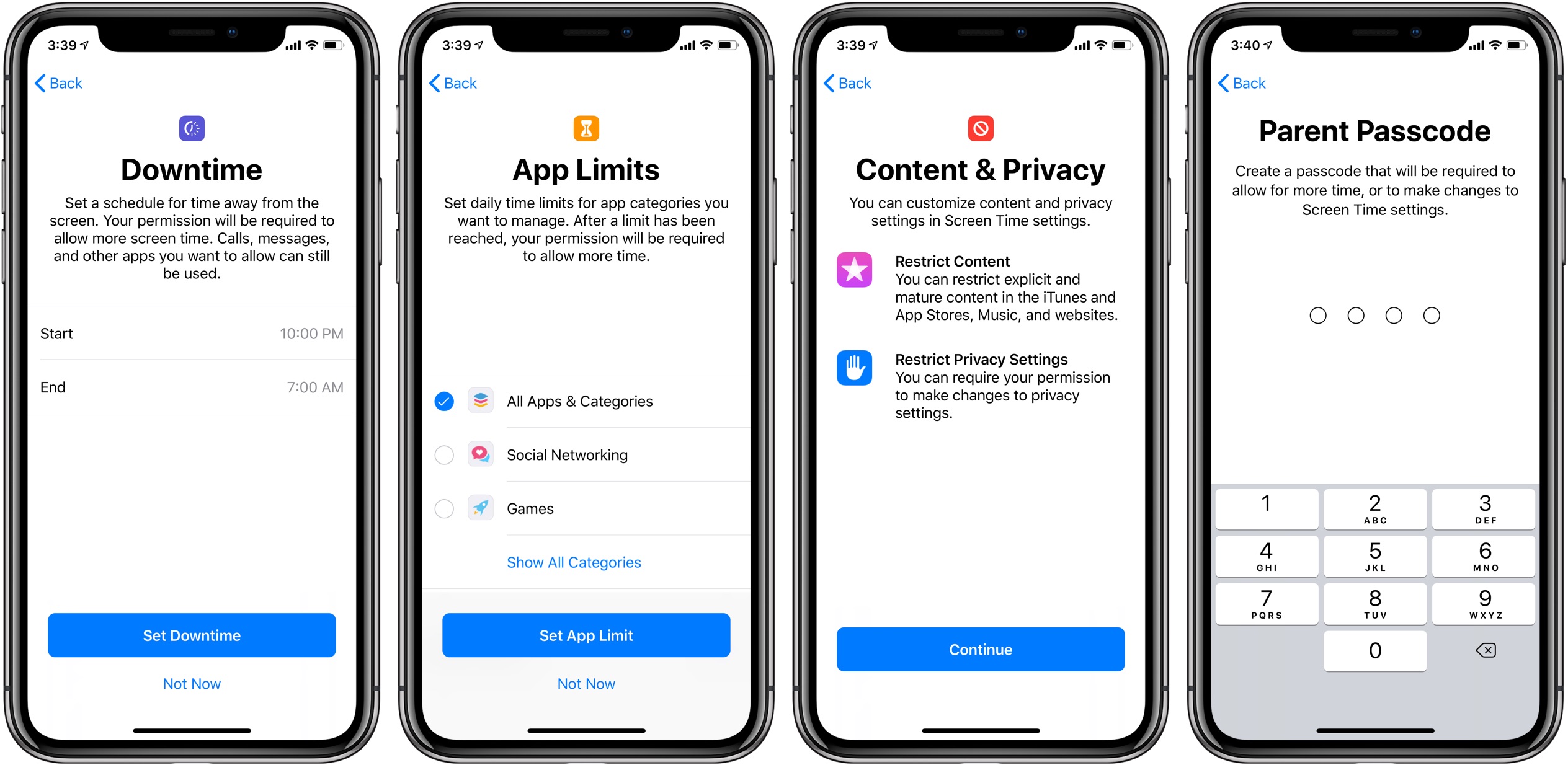
To enable Restrictions, slide the switch Content & Privacy Restrictions to the ON position.
iOS 11’s Restrictions have become iOS 12’s Content & Privacy Restrictions
Despite the name change, the Content & Privacy Restrictions section is precisely where you’ll find all of the parental controls for iPhone and iPad that you’ve come to know and love in older iOS editions, plus several new controls as part of the rich, new Screen Time section.
TUTORIAL: How to restrict kids’ screen time on iPhone and iPad
Here’s what parents can do with Screen Time:
- Activity Reports: Parents can see detailed activity reports for their own and their kids’ devices, including the total time spent in each app, usage across categories of apps, how many notifications are received and how often a person picks up their iOS device.
- Downtime: You can set a schedule for your junior for time away from the screen. Calls, messages and other apps you specifically want to permit can still be used. A parent’s permission is required to allow more screen time once the time hits zero.
- App Limits: Set daily time limits for app categories you’d like to manage to stop your kids from spending more than, say, 45 minutes a day on social media apps or games.
- Always Allowed: You can white-list critical apps you want your child to be able to use at all times, like the Phone and Messages apps.
- Content & Privacy Restrictions: All of the Parental Controls you previously accessed through Settings → General → Restrictions are now available from there.
Setting a Screen Time password prevents kids from changing these settings on their own.
To restrict apps kids will be permitted to access, just tap Allowed Apps and disable any apps you don’t want to be exposed to your junior on this device. Keep in mind that you must enable and configure Screen Time on all devices used by your children.
Screen Time is great for everyone to better understand and manage their device usage, but can be especially helpful for kids and families. Not only are parents able to access both their own and kids’ activity reports right from their own iOS devices to better understand where children are spending their time, but also set app limits for them remotely and much more.
Jihosoft Giveaway Alert:
The best iPhone Backup Extractor software to extract photos, text messages, contacts, voice memos, note, WhatsApp, Viber and etc from iPhone/iPad backup.
Must Read:Jihosoft iTunes Backup Unlocker
Jihosoft Android Data Recovery: the best Android Data Recovery software for Windows and Mac to recover deleted contacts, messages, photos, videos, WhatsApp and etc from Android devices.
If you can’t sync with iTunes and want to rescue data from a disable iPhone, you could try Gihosoft iPhone Data Recovery. Also feel free to ask questions on the iDevice is disabled error in the comments section below.
Screen Time data syncs across devices through iCloud.
Screen Time is account-based and as such works across all of a child’s iOS devices.
By basing Screen Time reports and allowances on kids’ total usage, there’s no cheating. Screen Time also works with Apple’s Family Sharing feature, allowing parents to also configure Screen Time settings remotely for their child within the same Family Sharing group.
Managing Screen Time features locally on a child’s device does not require Family Sharing.
Continue reading the article for the additional step-by-step instructions explaining how to access the iPhone and iPad parental controls on iOS 11 and older editions.

No comments:
Post a Comment